
Achieving stable frame rates on the fragmented Android mobile ecosystem is one of the toughest challenges for indie developers. A game running smoothly on high-end devices can easily overheat and thermal-throttle on mid-range hardware. In this article, we break down our performance optimization checklist for Unity mobile projects.
1. Understanding the Mobile Frame Budget
To maintain 60 FPS, your entire game loop—including CPU scripting, physics, rendering, and post-processing—must complete within 16.67 milliseconds per frame. If a single frame exceeds this threshold, the player perceives a stutter or dropped frame.
You can measure your frame time and calculate exact performance budgets using our free Unity FPS Calculator.
2. Minimizing Draw Calls with the SRP Batcher
On mobile GPUs (Adreno, Mali, PowerVR), CPU-to-GPU draw call submission is the most frequent rendering bottleneck. In the Universal Render Pipeline (URP), enable the SRP Batcher:
- Ensure all custom shaders use compatible
CBUFFER_START(UnityPerMaterial)blocks. - Group objects sharing identical shader programs to allow Unity to update transform data via fast GPU Constant Buffers rather than re-binding state.
- Combine small static environment meshes (rocks, barriers, hangers) into combined meshes or texture atlases.
3. Mobile Texture Compression: ASTC Standard
Uncompressed or poorly compressed textures saturate mobile memory bandwidth and drain battery life rapidly.
Always use ASTC (Adaptive Scalable Texture Compression) for Android builds. Recommended block sizes:
- ASTC 4x4 / 5x5: High-priority hero assets, HUD icons, and weapon reticles where crisp edges are critical.
- ASTC 6x6: Standard 3D model diffuse and normal maps (optimal balance between quality and memory).
- ASTC 8x8: Background terrain, distant skyboxes, and secondary environment textures.
Use our Resolution Calculator to ensure textures match target display pixel densities without unnecessary oversampling.
4. Eliminating Garbage Collection (GC) Allocations
In C#, allocating objects inside frequently called methods (such as Update or FixedUpdate) creates heap fragmentation. When Unity's garbage collector triggers, it pauses execution on the main thread for several milliseconds, causing visible micro-stutters.
Follow these zero-allocation rules:
// BAD: Allocates new array on heap every frame
void Update() {
    RaycastHit[] hits = Physics.RaycastAll(ray, 100f);
}

// GOOD: Reuses pre-allocated non-allocating buffer
private RaycastHit[] hitBuffer = new RaycastHit[16];

void Update() {
    int hitCount = Physics.RaycastNonAlloc(ray, hitBuffer, 100f);
}
5. Object Pooling for Munitions & Particles
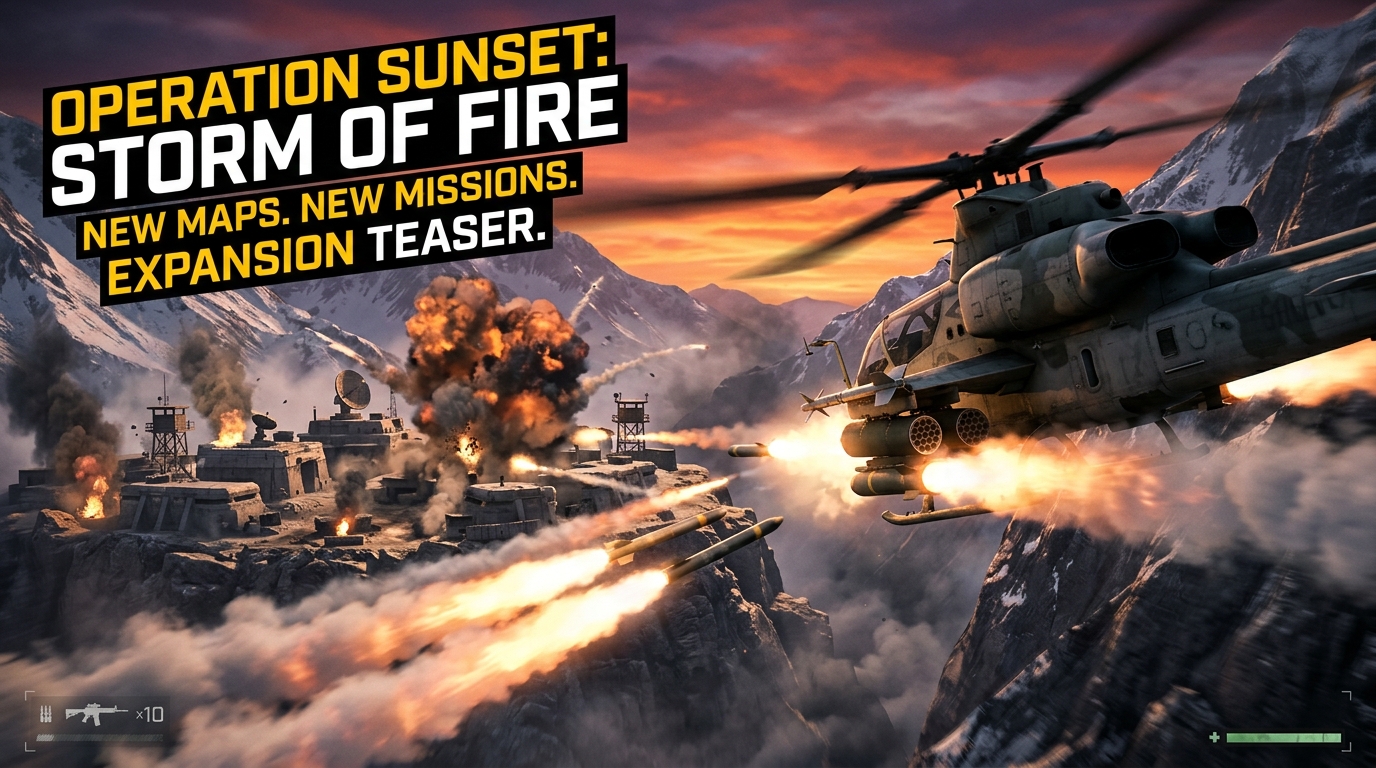
Never call Instantiate() or Destroy() during active combat. In games like Operation Black Sky, where autocannons fire dozens of rounds per second, instantiate bullet tracers, missile prefabs, and explosion effects into an object pool at scene load. When fired, activate the GameObject; on impact, deactivate it and return it to the queue.
6. Physics Optimization & Fixed Timestep
Unity's default physics fixed timestep is 0.02s (50 Hz). For high-speed air combat, ensure your timestep aligns cleanly with target display refresh rates. Keep collision matrices streamlined by unchecking unnecessary layer interaction checkboxes under Project Settings > Physics > Layer Collision Matrix.
For a full guide on trigger detection and collision matrices, read our Unity Collider & Trigger Optimization Guide.
7. Conclusion
Optimization is not an afterthought to perform right before release; it is a discipline built into every scene, shader, and script. While no single technique guarantees an automatic frame rate boost, systematically addressing draw calls, texture compression, and GC spikes ensures your game runs fluidly across the widest range of Android hardware.
CHECK OUT OUR COMPLETE OPTIMIZATION GUIDE
Read our in-depth tutorial with full C# scripts and URP render pipeline settings.
READ UNITY OPTIMIZATION GUIDE